STEP 01
Sign in to your account
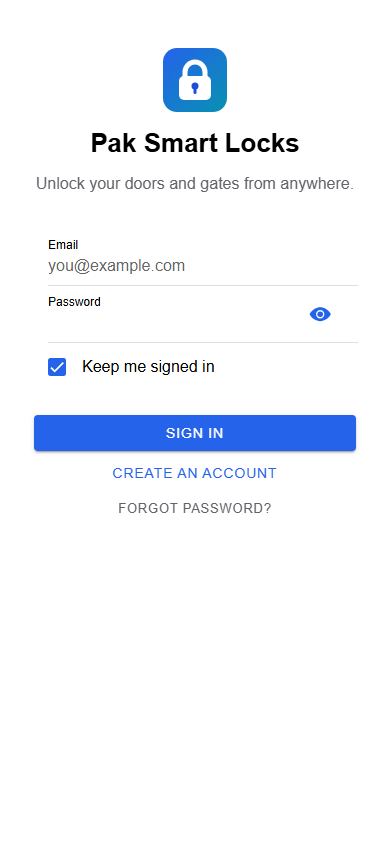
Use your Pak Smart Locks account to see the doors linked to you. Each person uses their own login.
See the screens you use to add a door, unlock it, check what happened, and spot a lock that needs to reconnect. Screens show example account data.
Available directly here until our Google Play release.
Follow the same path you use in the app. Each screen below is captured from the application with example data.
Use your Pak Smart Locks account to see the doors linked to you. Each person uses their own login.
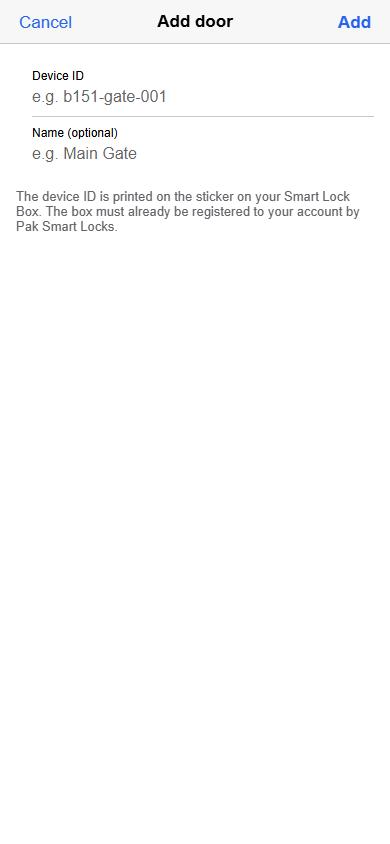
Tap the plus button in My Doors and enter the device ID printed on the box. The box must already be registered to your account.
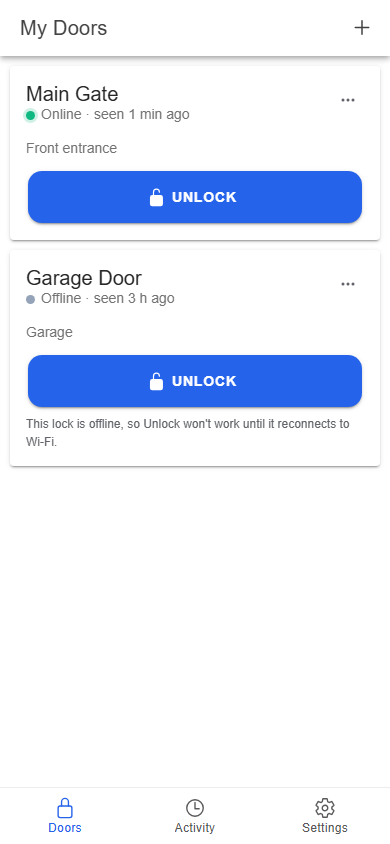
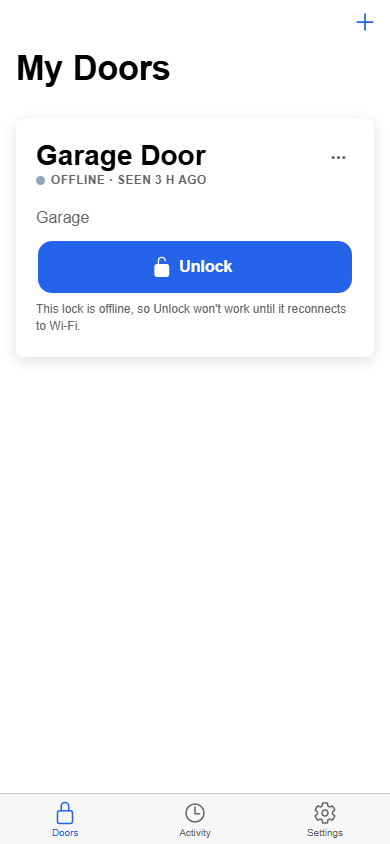
Check the online status, then tap Unlock for the door you want. The app sends the request and waits for the box to confirm it. You see an unlocked message, an error, or a waiting message if the box has not responded yet.
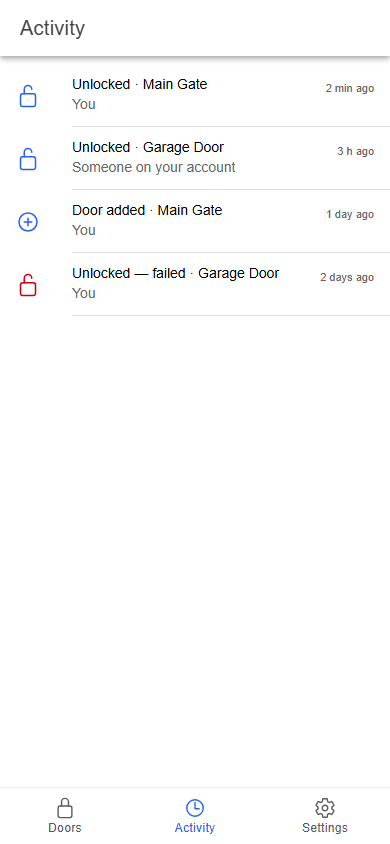
Open Activity to see unlock results, failed attempts, and door changes. The example shown includes both a successful unlock and a failed one.
An offline door shows a clear warning. It cannot unlock through the app until the Smart Lock Box reconnects to Wi-Fi.
Download our Android APK, sign in, and connect the Smart Lock Box registered to your account.
Download Android APK